
TreePath Pro tree testing tool: features and pricing
If you're looking for a tree testing tool, you're probably trying to answer a simple question: Can people actually find things in my navigation? TreePath Pro is the tool I built for that job: fast setup, clear results, and analysis that goes beyond "did they click the right final destination?"
- Hobby (Free) is usable for real studies: 1 active study, 50 participants / study, 5 tasks / study.
- It’s designed to be an honest evaluation plan—not a tiny “10 participants” demo.
What TreePath Pro does
TreePath Pro is a tree testing tool for UX research. You define your navigation tree, write tasks, collect participant paths, then analyze where people succeed, where they get lost, and which level of the tree caused the failure.
I built it because I wanted a tree testing workflow where the analysis is the easy part, not something you have to reconstruct from messy exports.
Who it’s for
TreePath Pro is for researchers and designers who want to:
- run tree tests without babysitting spreadsheets
- see why someone got to an answer (confident vs guessing)
- quickly spot which part of the navigation structure needs work
If you’re comparing tools, the fastest way to evaluate fit is to skim the free plan limits and the analysis features below.
Features that change how you interpret a tree test
Most tree testing tools will tell you whether someone ended up in the "right" place. That's necessary, but it's not always enough to make a decision. These are the features in TreePath Pro that are designed to give you more signal.
Task randomization (reduce order bias)
If a study has multiple tasks, order matters. People learn your structure as they go, which can inflate later-task performance.
TreePath Pro supports task randomization so participants see tasks in different orders. It’s a small switch, but it helps you separate “they understood the navigation” from “they got warmed up.”
Full-path click tracking (not just the final destination)
This is the feature I care about most.
TreePath Pro tracks the path participants take through the tree, not just their final click. That means you can see:
- whether someone went straight to the right place
- whether they explored, backed up, and tried again
- whether they landed in the right answer after a messy route (which is a very different "win" than a clean win)
If you only track the final selection, you can’t tell the difference between “they knew it” and “they stumbled into it.”
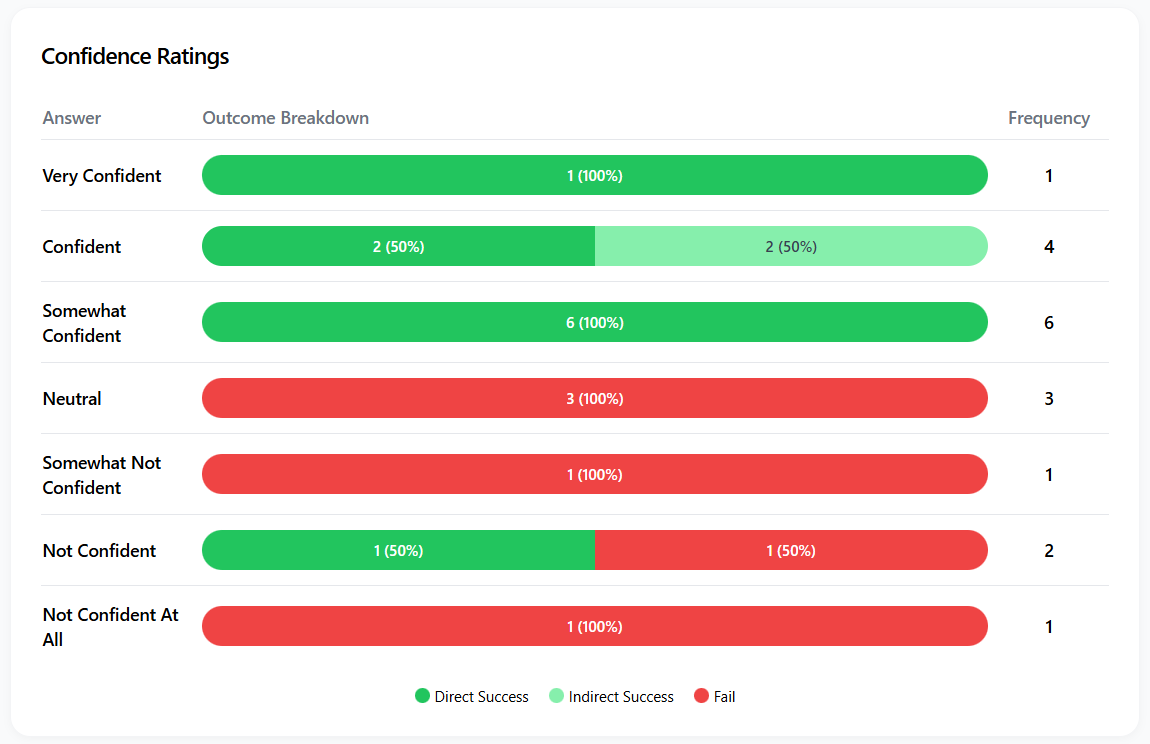
Confidence rating after each task (1–7)
After each task, participants can rate their confidence on a 1–7 scale.
This matters because success rate alone can lie:
- High success + low confidence often means: "they guessed, and they happened to guess right."
- Low success + high confidence often means: "your labels are pulling people strongly in the wrong direction."
TreePath Pro keeps the confidence rating attached to the task outcome, so you can tell “clean signal” from “lucky success.”
Parent node success rates (find the confusing level)
When you’re trying to fix navigation, “people failed” isn’t actionable enough. You need to know where the structure stopped matching their expectations.
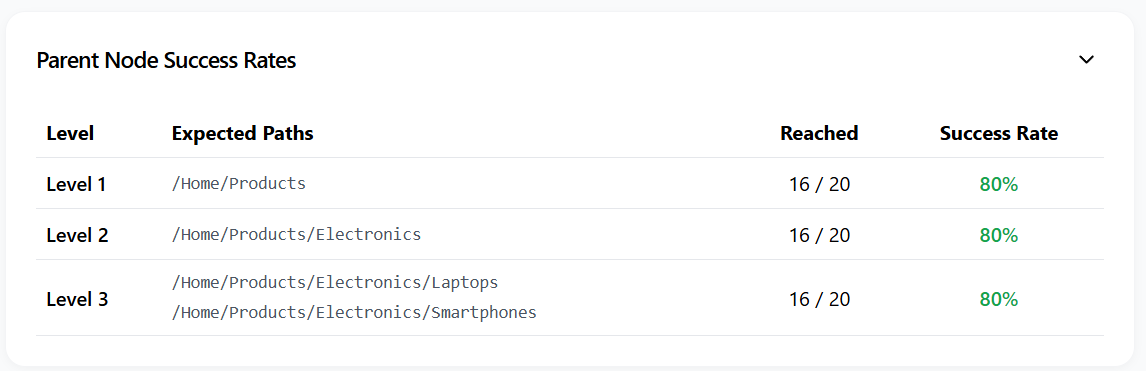
TreePath Pro includes a parent node success rates table that shows success by level. It makes it easy to answer:
- Is the top-level category wrong?
- Are users choosing the right section but getting lost one level down?
- Does confusion spike at a specific depth?
This is one of the fastest ways to turn a tree test into a concrete IA change.
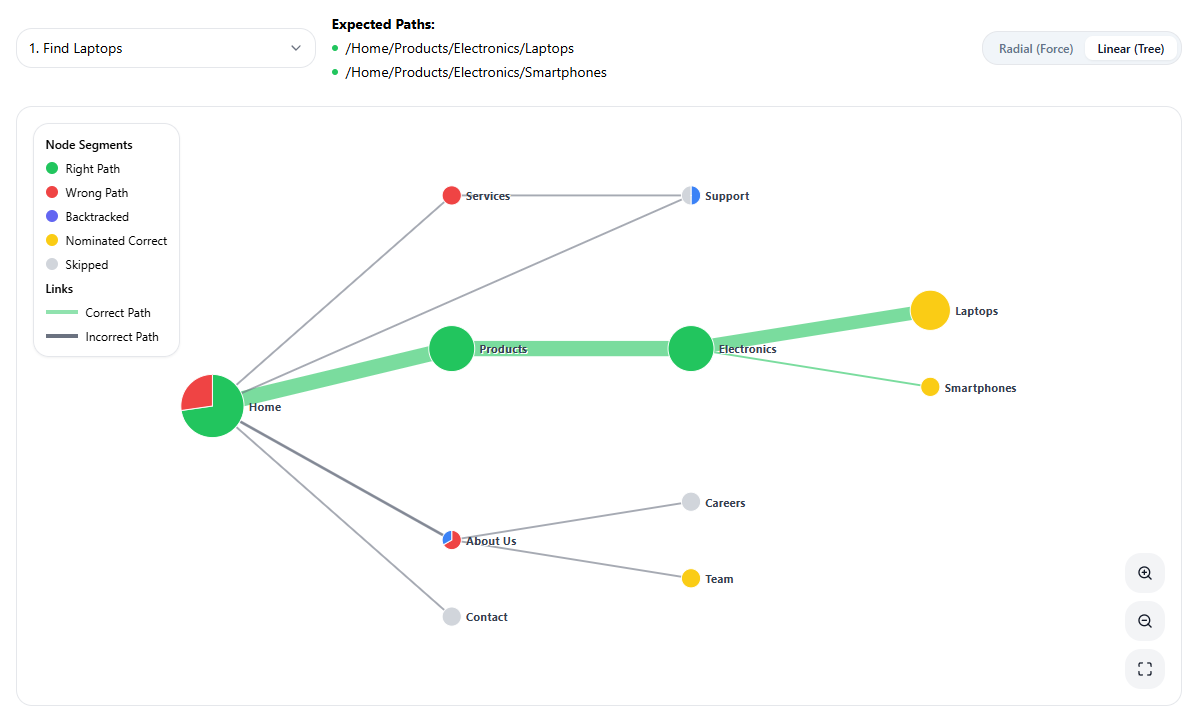
Pietree visualization (see click paths per task)
Sometimes you don't want another number. You want to see the behavior.
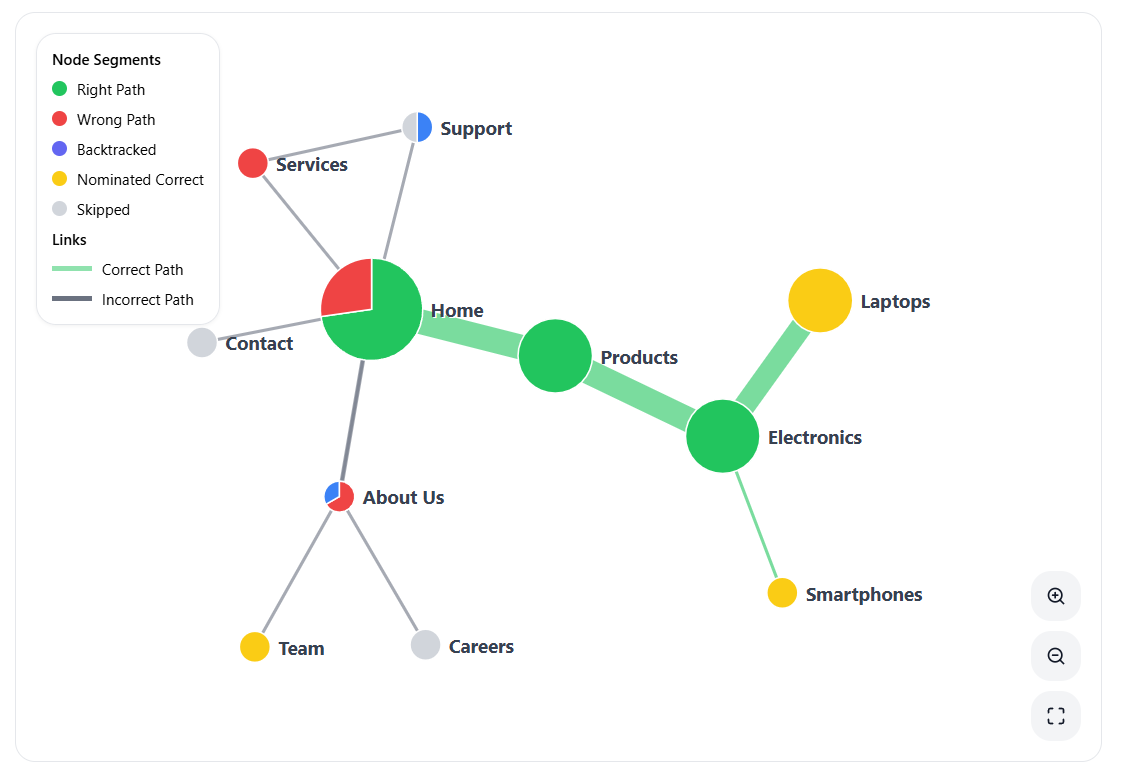
TreePath Pro includes a pietree visualization (a path visualization by task) so you can quickly spot:
- the dominant route people take
- the “wrong” route that keeps stealing participants
- where paths fan out (a sign your labeling or grouping isn’t giving a clear choice)
It’s the kind of chart that makes stakeholder conversations easier because you can point to the behavior instead of arguing about interpretations.
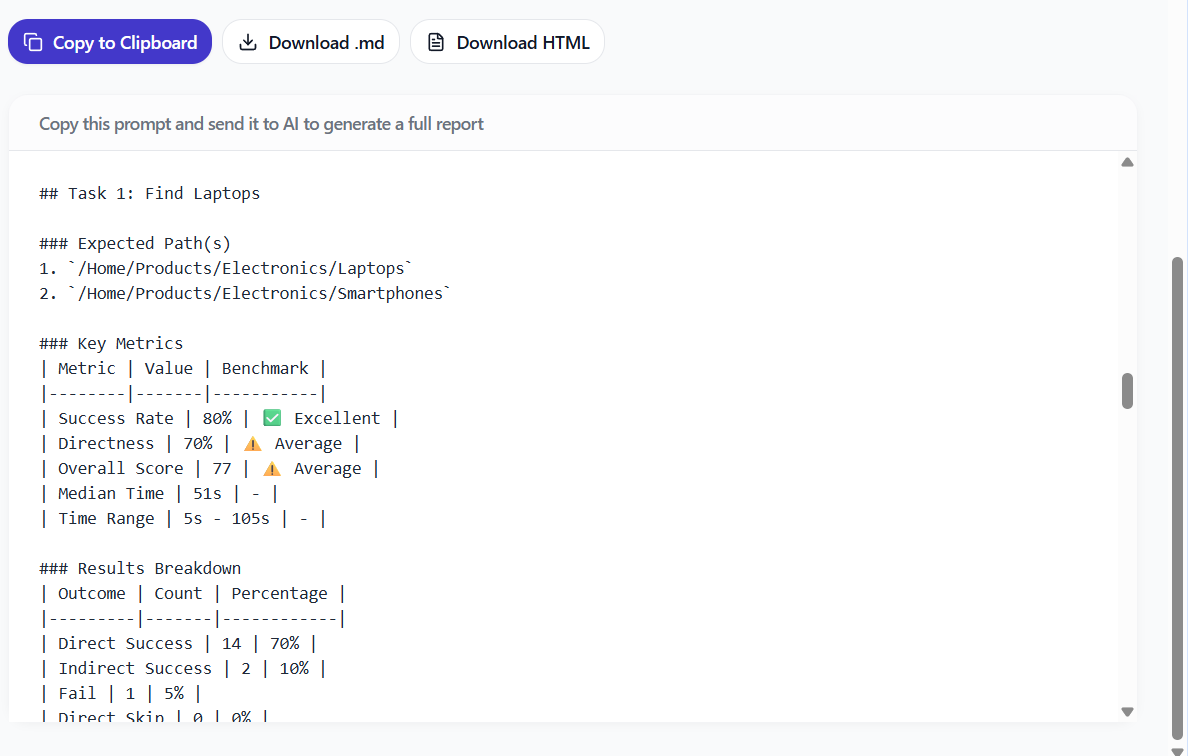
AI-ready prompt export (paste into an LLM to analyze)
TreePath Pro can generate an AI-ready prompt that summarizes:
- the study setup (tasks, expected paths)
- key stats (success, directness, confidence patterns, etc.)
- output structure that’s easy to paste into an LLM for analysis
If you already use ChatGPT/Claude/Gemini to help synthesize research, this saves you the annoying step of reformatting everything by hand.
For background on tree testing as a method (and how to interpret outcomes like direct vs indirect success), Nielsen Norman Group has solid primers: tree testing and interpreting tree test results.
Pricing and limits (free vs pro)
Here are the current plans, with the limits that actually affect whether you can run a real study.
| Plan | Price | Active studies | Participants / study | Tasks / study |
|---|---|---|---|---|
| Hobby (Free) | $0/mo | 1 | 50 | 5 |
| Pro | $19/mo | Unlimited | 1,000 | Unlimited |
| Enterprise | Custom | Custom | Custom | Custom |
The free plan isn't a toy. 50 participants per study is enough to run a real tree test and see patterns settle.
If you want the up-to-date details, go here: pricing.
FAQs
What does confidence tell me that success rate doesn’t?
Success rate tells you whether people got the right answer. Confidence helps you interpret how stable that success is.
In practice, it helps you separate:
- High success + low confidence → people are guessing (your navigation might be “barely working”).
- Low success + high confidence → labels are confidently pulling people to the wrong place (often easier to fix once you see it).
Do I need task randomization?
Not always, but it’s worth using when:
- you have multiple tasks
- tasks touch the same parts of the tree
- you’re worried later tasks benefit from learning
If you’re running a small study, randomization is an easy guardrail.
What does “parent node success rate” mean?
It’s success measured at each level of the tree.
Instead of only asking "did they end at the correct node," you can see whether they at least chose the correct top-level category, then the correct second-level category, and so on. It's a clean way to pinpoint where the structure or label stops matching expectations.
How many participants can I run on the free plan?
50 participants per study on Hobby (Free), with 5 tasks per study, and 1 active study at a time.
That’s the main reason I’m comfortable recommending the free plan as a real evaluation—not just a demo.
Try it free
If you’re choosing a tree testing tool, the best test is still running one study on your own navigation.
Start with Hobby (Free), run one real tree test, and see whether the analysis outputs (path tracking, confidence ratings, parent node success rates, pietree) give you the clarity you need.
Try it free: TreePath Pro
And when you’re ready to compare limits: pricing